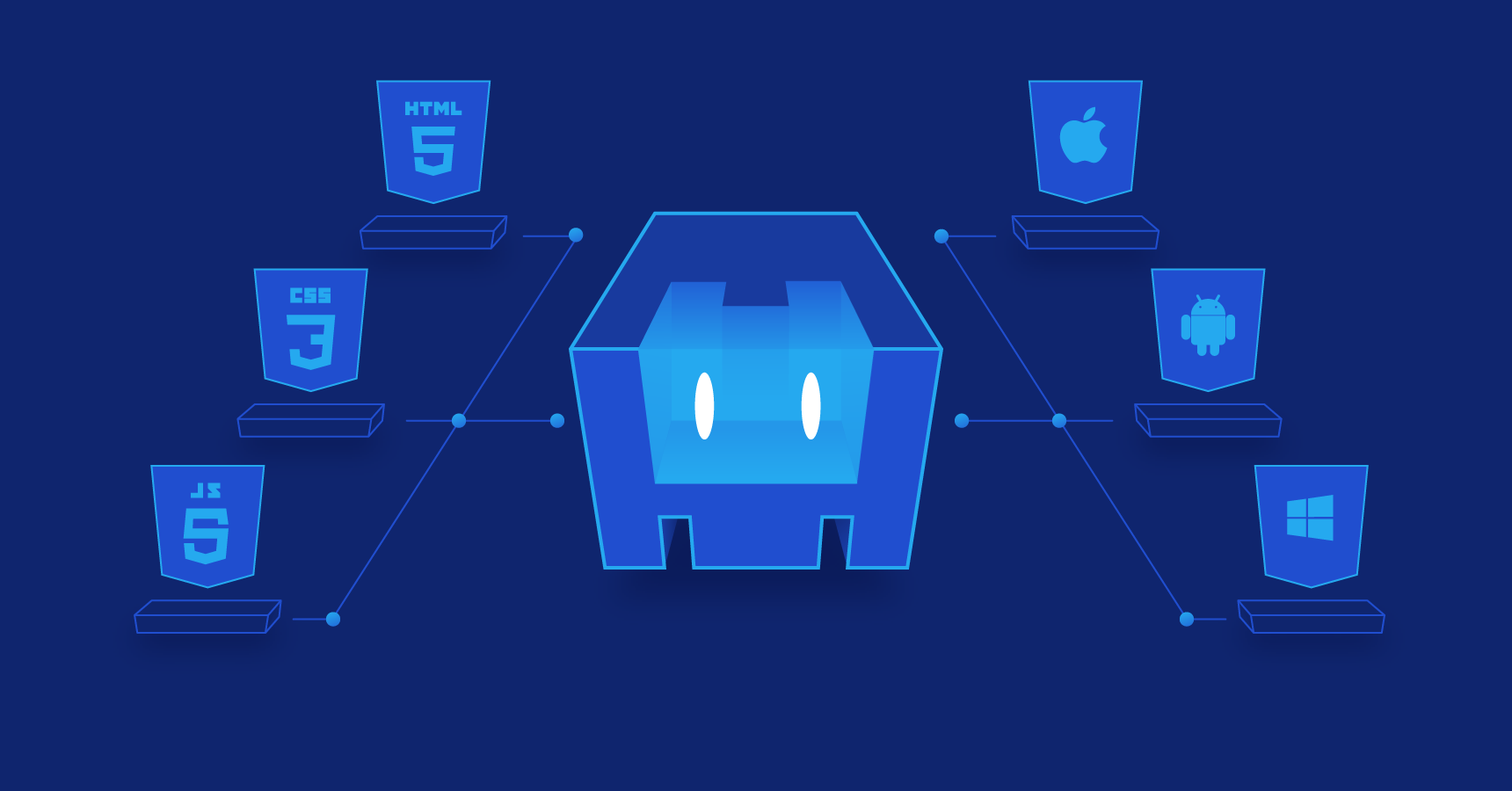
In this article, I will try to explain how to create a simple Cordova plugin, what it is, and when we need it.
What is a Cordova Plugin?
Before we start, let’s understand what Cordova plugins are. A Cordova plugin acts as a bridge between the web and the native system. It fulfills this role with a combination of JavaScript and native code.
When Do We Need It?
Cordova applications essentially run in a web browser. However, the web doesn’t always provide the features we need from the native system. That’s why we need to write native code and communicate with the system. Cordova plugins enable this.
How to Create One?
To create a plugin, we first need Cordova CLI and Plugman. You can install them from the terminal with the following command.
npm install -g plugman cordovaThen we can create the plugin through Plugman. We need to specify 3 parameters in total.
plugman create --name PluginName --plugin_id "me.mazlum.pluginname" --plugin_version 0.0.1After running the command, it will create the plugin’s basic folders and files in your current directory. Then you can enter the created folder and add a platform to the plugin with the following command. For example, let’s go with Android.
plugman platform add --platform_name androidAfter running the above command, a sample Java file will be created. All the code you write for the Android platform will be managed through this file. At this point, you actually have a very simple plugin. If you want to publish this plugin with NPM, you can create the package.json file with the following command.
plugman createpackagejson .From this point on, examples will be Android-based.
JavaScript API
As I mentioned at the beginning of the article, we talked about some JavaScript and some native code. Let’s first take a look at the JavaScript side. You can access the following file at www/PluginName.js.
var exec = require('cordova/exec');
exports.coolMethod = function (arg0, success, error) {
  exec(success, error, 'PluginName', 'coolMethod', [arg0]);
};
Through the functions created in this file, we will communicate with the native code. For example, you can call this function from the JavaScript side as follows.
cordova.plugins.PluginName.coolMethod('test', (success) => {
  console.log('response', success);
});
Now let’s look at its counterpart on the native side. You can access the following file at src/android/PluginName.java.
package me.mazlum.pluginname;
import org.apache.cordova.CordovaPlugin;
import org.apache.cordova.CallbackContext;
import org.json.JSONArray;
import org.json.JSONException;
import org.json.JSONObject;

public class PluginName extends CordovaPlugin {
  @Override
  public boolean execute(String action, JSONArray args, CallbackContext callbackContext) throws JSONException {
    if (action.equals("coolMethod")) {
      String message = args.getString(0);
      this.coolMethod(message, callbackContext);
      return true;
    }

    return false;
  }

  private void coolMethod(String message, CallbackContext callbackContext) {
    if (message != null && message.length() > 0) {
      callbackContext.success(message);
    } else {
      callbackContext.error("Expected one non-empty string argument.");
    }
}
We capture and process the parameters sent from the JavaScript side through the execute method. In the example above, coolMethod is a good example.
Adding Dependencies to the Plugin
After creating the plugin, you will certainly need another package. So how will you add a package to your Cordova plugin? The process is simple. When you create the plugin with CLI, a file called plugin.xml is also created. We can add our packages to this file. For example, let’s import the Agora Voice SDK.
<platform name="android">
  ....
  <framework src="io.agora.rtc:voice-sdk:3.3.0" />
</platform>
Adding Permissions to the Plugin
For example, we’ll need microphone permission when using this SDK. So let’s make it automatically add this permission to our AndroidManifest.xml file when the plugin is installed with the code below. We need to edit our plugin.xml file again.
<platform name="android">
  ....
  <config-file parent="/manifest" target="AndroidManifest.xml">
    <uses-permission android:name="android.permission.RECORD_AUDIO" />
  </config-file>
</platform>
Adding Variables to the Plugin
When installing a plugin, we may want a constant variable. These variables can be platform-specific or generally applicable. For example, when installing the cordova-plugin-purchase plugin, you need to provide a variable called BILLING_KEY. An example of plugin installation with parameters.
cordova plugin add cordova-plugin-purchase --variable BILLING_KEY="MIIB...AQAB"So where do we define this variable? Yes, again in plugin.xml.
<preference name="MY_GLOBAL_VARIABLE" default=" " />
<platform name="android">
  ....
  <preference name="MY_VARIABLE" default=" " />
</platform>
Installing the Plugin in a Project
We created our plugin, added our packages, and defined our variables. Now we’re ready to use this plugin in a Cordova project. If you haven’t published the plugin to NPM yet, you can add it to your Cordova project as follows. Go to the main directory of your Cordova project and add your plugin to your project with the following command.
cordova plugin add --link ~/path/PluginNameFrom this stage onward, you can make any modifications you want in the native code.
Conclusion
With this article, we learned how to create a small Cordova plugin and do some minor customization. See you in my next article.